
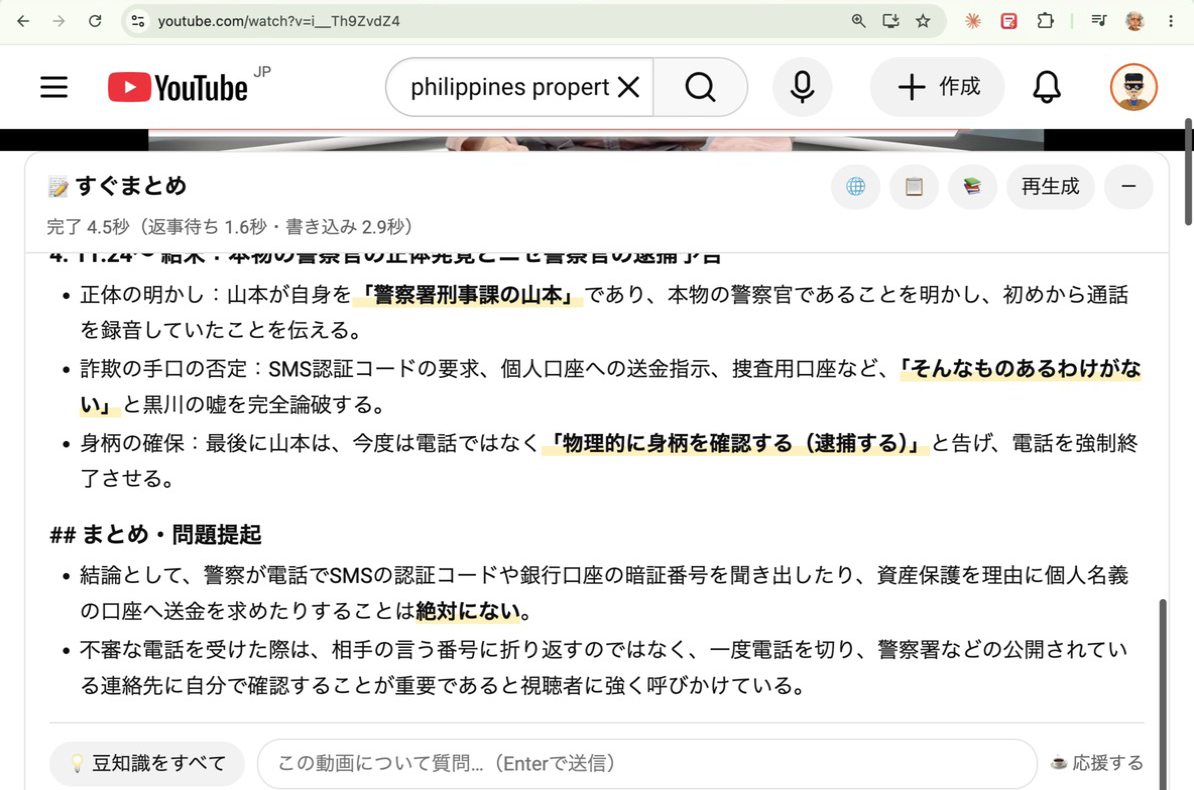
すぐまとめQuickRecapQuickRecap
YouTube の動画を AI でまとめる Chrome 拡張 A Chrome extension that summarises YouTube videos with AI Chrome extension na nagbubuod ng YouTube videos gamit ang AI
動画を開くだけ。要約・ポイント・豆知識が出ます。16分の動画が数秒で読めます。 Just open a video. You get a summary, the key points and trivia. A 16-minute video becomes a few seconds of reading. Buksan mo lang po ang video. Lalabas agad ang buod, mga key points, at trivia. Ang 16-minute na video, ilang segundo lang pong basahin.
ダウンロード(ZIP)Download (ZIP)I-download (ZIP)
※ ただいま Chrome ウェブストアの審査中です。公開までは、下の手順で手動で入れてください。 Currently under review on the Chrome Web Store. Until it is published, install it manually as shown below. Under review pa po sa Chrome Web Store. Hanggang hindi pa published, manual po muna ang pag-install.
入れ方(3分)How to install (3 min)Paano i-install (3 min)
- ZIP を解凍するUnzip the fileI-unzip ang file
ZIP のままでは入りません。ダブルクリックして
quickrecapフォルダを作ります。 It will not install while still zipped. Double-click it to get thequickrecapfolder. Hindi po ito papasok kung ZIP pa. I-double click po para lumabas angquickrecapfolder. - 拡張機能の画面を開くOpen the extensions pageBuksan ang extensions page
アドレスバーに
chrome://extensionsと入力して Enter。 Typechrome://extensionsin the address bar and press Enter. I-type po angchrome://extensionssa address bar, tapos Enter. - 「デベロッパー モード」をオンにするTurn on Developer modeI-on ang Developer mode
画面の右上です。ここがオフだと、次の手順は何も起きません。いちばん多い失敗です。
Top right of the page. If this is off, the next step silently does nothing. This is where most people get stuck.
Nasa kanang itaas po. Kung naka-off ito, walang mangyayari sa susunod na step. Dito po madalas ma-stuck.

オレンジの枠がデベロッパー モード。これをオンにすると、灰色の枠のボタンが出ます Orange: Developer mode. Turning it on reveals the buttons in the grey box. Orange: Developer mode. Kapag na-on, lalabas ang mga button sa grey box. - フォルダをドラッグして放すDrag the folder onto the pageI-drag ang folder sa page
解凍した
quickrecapフォルダを、この画面の上にドラッグします。フォルダそのもので、中身ではありません。 Drag the unzippedquickrecapfolder onto this page. The folder itself, not the files inside it. I-drag po angquickrecapfolder dito. Ang folder mismo po, hindi ang laman nito. - YouTube を開き直すReload YouTubeI-reload ang YouTube すでに開いているタブには反映されていません。動画を開いて、上のような表示が出れば完了です。 Tabs that were already open will not have it yet. Ang mga naka-bukas nang tab po ay hindi pa ito nakikita.
うまくいかないときIf something goes wrongKung may problema
| ドラッグしても何も起きないDragging does nothingWalang nangyayari kapag nag-drag | デベロッパー モードがオフです。Developer mode is off.Naka-off po ang Developer mode. |
| 「マニフェストがありません」"Manifest file is missing""Manifest file is missing" | ZIP のまま、または中身を選んでいます。Still zipped, or you picked the files inside.ZIP pa po, o ang laman ang napili. |
| 入ったのに要約が出ないInstalled but no summaryNaka-install pero walang buod | YouTube を再読み込みしてください。Reload the YouTube page.I-reload po ang YouTube page. |
| 起動のたびに警告が出るA warning appears at every launchMay warning tuwing bubuksan | 手で入れた拡張機能すべてに出ます。「キャンセル」で使えます。ウェブストア公開後は出ません。Normal for any manually installed extension. Choose Cancel. It stops once the store version is out.Normal po ito sa manual install. Pindutin po ang Cancel. Mawawala rin pag published na sa store. |